
Experiencer documentation
Start finding job leads
Connect ChatGPT, Claude, or Grok to Experiencer, add your résumé, describe the job you want, and let your assistant find, track, and tailor for job leads.
Cloud account: This workflow is available to signed-in Free and paid Pro accounts within tier limits.
Last reviewed:
Experiencer keeps your résumés and your job search in one place. Connect a chat assistant once, and it can search for roles that fit your experience, save each one as a job lead with its posting, and tailor a résumé when you decide to apply. You decide which leads matter, and you submit every application yourself.
Job leads and assistant connections work on every plan, including the free account, within your plan’s usage limits. Pro templates need paid Experiencer Pro; the free templates work with any account.
Prefer a coding agent such as Codex or Claude Code? See Use Codex or Claude Code.
How it works
- Connect your assistant to your Experiencer account.
- Add your résumé so the assistant knows your experience.
- Describe what you are looking for.
- Ask your assistant to find leads.
- Review and rate the leads so the next search improves.
- Apply with a tailored résumé.
Before you start
- Create a free Experiencer account or log in.
- Use an assistant plan that allows custom connectors. Some ChatGPT and Claude plans do not.
- Use an assistant that can browse the web. Experiencer does not search job boards itself; your assistant searches and saves what it finds.
- Have the connector address ready:
https://experiencer.app/mcp. Grok useshttps://experiencer.app/mcp?client=grok.
You can also copy the address in Experiencer: open a saved résumé and choose AI Review → Connect AI assistant.
Connect your assistant
Follow the steps for your assistant. You only need to do this once.
Connect ChatGPT
- In ChatGPT, open Settings and go to the connectors (apps) settings.
- Choose the option to add a custom connector. Depending on your plan, you may need to turn on developer mode first.
- Name it Experiencer and paste
https://experiencer.app/mcpas the server address. - Save the connector, sign in to Experiencer when ChatGPT asks, and approve access for your account.
ChatGPT changes where this setting lives between plans and releases. If a label differs, look for “connectors”, “apps”, or “custom connector”.
Connect Claude
- In Claude, open Settings → Connectors.
- Choose Add → Add custom connector.
- Name it Experiencer and paste
https://experiencer.app/mcpinto the MCP URL field. - Add the connector, sign in to Experiencer, and approve access for your account.
Connect Grok
- In Grok, open Skills and Connectors and choose New Connector.
- Select the custom connector option and name it Experiencer.
- Paste
https://experiencer.app/mcp?client=grokand add the connector. - Sign in to Experiencer and approve the requested access.
Add your résumé
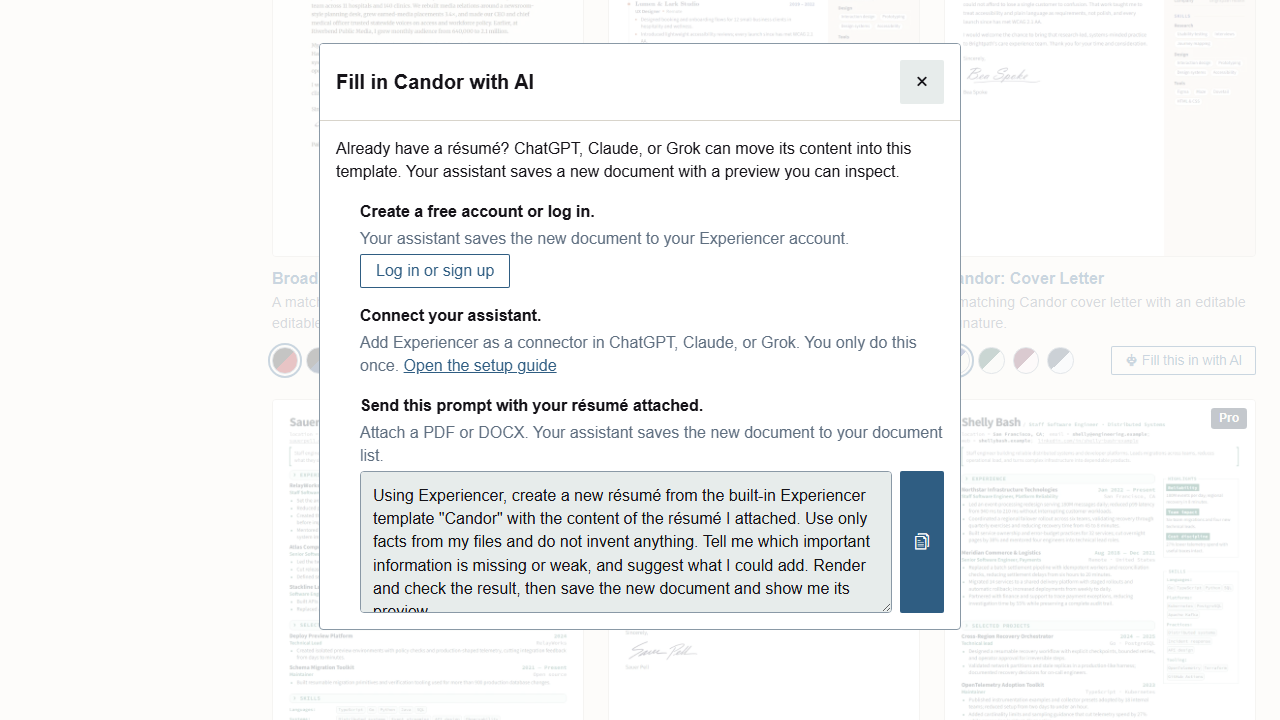
Your assistant reads your saved résumé to judge which roles fit and to tailor applications later. If a résumé is already saved to your Experiencer account, skip to the next step. Otherwise, fill in a template from the résumé you already have:
- In Experiencer, choose Create a resume.
- On the template you like, choose Fill this in with AI and copy the prompt.
- In your assistant, attach your current résumé as a PDF or DOCX and paste the prompt.
- Inspect the saved result and its version-history changes. If you requested only a preview, ask separately to save it when ready.
The new résumé then appears in your Experiencer document list, ready to edit and export.
Describe what you are looking for
- In Experiencer, choose Job leads in the sidebar.
- On the Search preferences card, choose Edit preferences.
- Replace the default Search instructions with the roles you want, then choose Save search instructions. Include anything that rules a job in or out: titles, seniority, location or remote work, minimum salary, industries, and deal-breakers.
- Expand the company exclusions list (it starts as No companies excluded), enter a company you never want recommended in Company to exclude, and choose Add company exclusion.
For example:
Senior or staff backend engineering roles, remote in the US or hybrid in Phoenix. At least $160,000 base. Prefer developer tools, healthcare, or climate companies with under 2,000 employees. No crypto, no on-call rotations more often than monthly, and no roles that require relocation.You can change these at any time here or under Settings → Job search. Your assistant reads the latest version at the start of each search.
Ask your assistant to find leads
Open a new chat in your connected assistant and paste:
Using Experiencer, read my job search context and my saved résumé. Then search the web for open roles that match. Save each promising posting as an Experiencer job lead with its posting link, company, title, and salary if listed, plus a priority recommendation and a short reason. Skip companies I have excluded. When you finish, summarize what you saved and why.Your assistant saves each lead with the posting it found, so you can check its facts. Facts it cannot find stay blank, and an estimated salary is labeled as an estimate rather than shown as advertised. Running the same search again updates a lead it already saved from the same posting, and it does not reopen leads you have paused or closed. The same job found under a different link can still be saved as a separate lead, so ask your assistant to check for duplicates if you see one.
You can also add a lead yourself. Choose Add job lead and paste a posting link, the posting text, or both. On a phone, choose Capture lead and paste a link or attach a screenshot of the posting. Then ask your assistant to fill in what is missing:
Using Experiencer, fill in the missing company, title, and salary details for my newest job leads from their postings, and recommend a priority for each.Review and rate your leads
The Job leads table lists your newest leads first. Use the stage buttons above it (All, New, Saved, Applied, and so on) and the search box to narrow the list. Priority shows A, B, or C, tagged Agent for your assistant’s recommendation or You when you set your own.
Select a lead to open it:
- The header shows the title, company, posting link, and stage. Overview shows the salary, priority, and the assistant’s reasoning.
- Your rating scores the lead from 0 to 5. A low rating offers to exclude that company from future recommendations.
- Your notes are for you. Your assistant can read them but cannot change them.
- Posting sources keeps the posting text as it was captured.
Ratings teach your assistant what you want. When the Search preferences card says your preferences need agent review, ask:
Using Experiencer, review my latest job lead ratings and corrections and update what you have learned about my preferences.The card’s Agent has learned summary then shows what changed. If it gets something wrong, choose Edit preferences, then Not quite right? Add a correction, and explain in your own words.
On a phone, Job leads opens as a feed: Shortlist a lead to save it, Defer to put it on hold, or Skip to close it.
Apply with a tailored résumé
- Open the lead and, under Linked résumés, choose the Saved résumé to start from.
- Expand Tailor with a connected AI assistant, copy the Tailoring request, and paste it into your assistant. It saves the tailored résumé as a separate document, so your original stays untouched, and links that exact version to the lead.
- Choose Reload saved progress and check that the tailored résumé appears under Linked résumés. If it is missing, pick it and its exact version and choose Link selected revision. The lead then remembers which version you sent.
- Export the PDF, then apply on the employer’s site. Your assistant never submits applications.
- In the lead’s stage control, choose Applied. Experiencer records today as the submission date; choose Change if you applied on a different day.
Move the lead through Interview and Offer as you hear back, or choose Hold or Closed under Pause or end.
Keep the search going
- Run the search prompt again whenever you want fresh leads. Your ratings, exclusions, and corrections shape each new search.
- Optional: under Settings → Job search → Agent follow-up instructions, save a rule your assistant follows when it creates a lead or moves one to a stage, for example, creating a reminder task when you ask it to mark a lead Applied. Changes you make in Experiencer yourself do not start your assistant.
- To have an automation react to every new lead, see Use Experiencer with Grok Bot.
For more requests to try, see Example prompts.
What the assistant can and cannot see
The assistant reads the latest saved version of the résumés and custom templates in your cloud account, the built-in templates your plan includes, and your job leads and search preferences. It cannot see résumés stored only in this browser or edits you have not saved.
It can save and update job leads and recommend priorities. It cannot change your ratings, notes, or search instructions, remove companies you excluded, or confirm your submission date. Only you can.
A preview-only request makes no saved change. An authorized save creates an attributed revision or a separate résumé; you can inspect its visual snapshot and diff and undo the latest agent edit in version history. To stop access, remove the Experiencer connector in your assistant’s settings.
Next: Review with an AI assistant.